A missing or broken key on your favorite keyboard can be incredibly frustrating, disrupting your workflow and making your device feel incomplete. But does a single faulty key mean you need to buy a whole new keyboard? Absolutely not. For many laptops and desktops, purchasing replacement keyboard keys is a simple, affordable, and highly effective solution. This guide will walk you through everything from identifying the parts you need to the final satisfying click of a successful installation.
Why Replace a Single Key Instead of the Whole Keyboard?
Before we dive into the "how," let's cover the "why." Opting for individual key replacement over a full keyboard swap has several major advantages, making it the preferred choice for savvy tech users.
Cost-Effectiveness
This is the most significant benefit. A full keyboard replacement, especially for high-end laptops like a MacBook or a premium mechanical keyboard, can cost hundreds of dollars. In contrast, a single replacement key kit, which usually includes the keycap and the underlying hinge mechanism, typically costs only a few dollars. It's the most budget-friendly repair you can make.
It's an Eco-Friendly Choice
Replacing an entire keyboard generates electronic waste. By choosing to repair what you have, you're keeping a perfectly functional piece of hardware out of the landfill. It's a small but meaningful step toward more sustainable tech habits.
Simplicity and Time Savings
For many common models, replacing a key is a straightforward DIY task that can be done in minutes with minimal tools. A full keyboard replacement, particularly on modern thin-and-light laptops, can be a complex and time-consuming procedure involving the removal of dozens of tiny screws, delicate ribbon cables, and sometimes even the entire motherboard.
Preserving Your Original Hardware
If you love the feel of your current keyboard, why change it? Replacing a single key allows you to maintain the consistent typing experience you're used to. This is especially true if your keyboard is broken-in perfectly to your liking. It ensures the rest of your keys match in texture, color, and feel.
Understanding Your Keyboard: Types and Structures
Not all keyboards are created equal. The right replacement key and repair process depends heavily on the type of keyboard you have. Let's break down the most common kinds.
Laptop Keyboards (Scissor-Switch Mechanism)
The vast majority of laptops use keyboards with scissor-switch mechanisms. These are low-profile and designed to be thin. Each key consists of three main parts:
- The Keycap: The plastic square with the letter printed on it that your finger touches.
- The Retainer Clip: Also called a hinge, this is a delicate, scissor-like plastic piece that attaches to the keyboard base and holds the keycap. It's responsible for the up-and-down movement. This is the most frequently broken part.
- The Rubber Cup: A small silicone nub in the center that acts as a spring and makes the electrical contact when pressed.
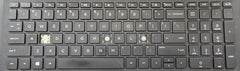
Because these parts are so small and model-specific, it's crucial to identify your exact laptop model. For example, finding an individual keycap for an HP 15-BA series requires knowing that specific model line, as the clips may differ from other HP laptops.
Mechanical Keyboards
Favored by gamers, programmers, and typing enthusiasts, mechanical keyboards have individual mechanical switches under each keycap. Replacing a keycap on these is incredibly simple—you just pull the old one off (preferably with a tool called a keycap puller) and press the new one on. The complexity comes if the switch underneath is broken, which requires desoldering and soldering a new switch.
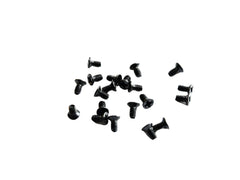
Custom builds, like those using Wooting keyboards, also require specific hardware. Even the case screws are specialized, which is why we carry parts like M2 x 4mm machine screws for the Wooting 80HE to ensure a perfect fit during reassembly.
Membrane Keyboards
These are common in budget desktop keyboards. They use a single rubber dome membrane sheet that spans the entire keyboard. While you can often replace the keycaps (they usually pop on and off), the underlying actuation mechanism is part of a single sheet and cannot be repaired on a per-key basis. If the rubber dome under a key is torn, you'll likely need a new keyboard.
How to Find the Right Replacement Keyboard Keys: A Guide
Sourcing the correct part is the most critical step. Here’s how to do it right.
- Identify Your Exact Device Model: For laptops, this is non-negotiable. Look for a label on the bottom of the chassis. It will have a model number like "MacBook Pro A1286," "Dell Latitude E5550," or "HP Pavilion 15-BA009DX."
- Identify Your Hinge/Retainer Clip Type: This is a common stumbling block. Manufacturers often use several different hinge clip styles on the same laptop model. Once you remove the broken keycap, you must take a clear, well-lit photo of the empty socket on the keyboard and the back of the keycap. A reputable seller will show pictures of the hinge types they carry so you can visually match yours.
- Find a Reputable Supplier: You need a seller who specializes in small electronic parts and understands the nuances of keyboard repair. Generic marketplaces can be a gamble. A dedicated store like Tech Spare Warehouse ensures you get the precise part you need, with clear photos and model compatibility information.
How to Replace a Laptop Keyboard Key (Step-by-Step)
Ready to get hands-on? Here’s a general guide to replacing a standard laptop scissor-switch key. Remember to always work gently!
- Gather Your Tools: You don't need much. A small, thin pry tool (a plastic spudger, guitar pick, or even a fingernail) and maybe a pair of tweezers will be helpful for the small retainer clip.
- Gently Remove the Old Keycap: If the cap is still attached, slide your pry tool under a corner and gently twist to pop it off. Try to feel where the clips are releasing. Never use brute force.
- Inspect the Retainer Clip and Rubber Cup: Is the white or black plastic hinge piece still in place and intact? Is the rubber cup in the center undamaged? If the hinge is broken, remove its pieces. They usually unclip from tiny metal hooks on the keyboard base.
- Install the New Retainer Clip (If Necessary): This is the trickiest part. Most hinges come in two pieces that interlock. Assemble them, then carefully hook the bottom part onto the metal tabs on the keyboard base, and press the top part down until it clicks into place. It should lie flat and move freely.
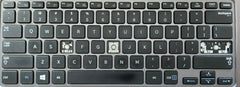
- Snap on the New Keycap: Align the new keycap over the retainer clip. Press down firmly and evenly. You should hear a distinct "snap" or "click" as it locks into place. For larger keys like the spacebar or shift key, it may have a metal bar that also needs to be seated correctly. A replacement kit for a specific model, like this set for Samsung Ultra series laptops, will be engineered to fit perfectly.
- Test the Key: Press it a few times. It should have the same travel and feel as the surrounding keys. Open a text editor and make sure it registers correctly.
Common Mistakes to Avoid During Keyboard Repair
- Using Too Much Force: The golden rule. The plastic clips are incredibly delicate. Patience and gentle prying are key. If it doesn't feel right, stop and re-evaluate.
- Ordering Without Matching the Hinge: Don't just order based on your laptop model. Always compare your existing hinge clip to the photos provided by the seller.
- Using Glue: Never, ever use super glue or any other adhesive. It will seep into the mechanism, permanently ruining the key and likely the keyboard base itself. A properly installed keycap does not need glue.
- Losing Screws During a Deeper Repair: If your repair requires you to open the laptop's chassis, be meticulous about keeping track of screws. Losing them is a common headache, which is why having access to replacements like this 500-piece set of keyboard screws for MacBook Pros can be a lifesaver for technicians and DIYers.
Our Recommended Replacement Keyboard Keys
At Tech Spare Warehouse, we stock a wide variety of individual keycaps for the most popular laptop models. Our kits come with the keycap and retainer hinge to ensure you have everything you need for the fix. Here are some of our most sought-after kits:
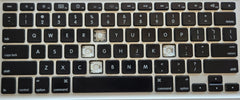
- For MacBook Pro Users: The Unibody MacBook Pros are legendary, and keeping them in top shape is a priority for their owners. We offer specific Individual Key Replacements for the MacBook Pro 15" A1286 to help you restore that classic keyboard.
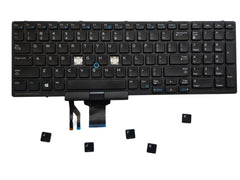
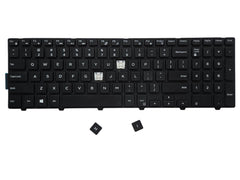
- For Dell Business & Consumer Laptops: Dell produces a vast range of laptops, and we have keys for many of them. Whether you have a workhorse Latitude or a versatile Inspiron, we have you covered with kits like our replacement keys for the Dell Latitude E5550 & E5570 or the popular keycap replacements for the Dell Inspiron 15 5552.
- For HP Pavilion and Compaq Models: HP is one of the world's biggest PC makers, and we provide keys for many of their models, new and old. This key replacement kit for HP Pavilion and Compaq models is a popular choice for breathing new life into older machines.
Your Keyboard's Second Life Starts Here
A broken key is a minor setback, not a major disaster. With a little patience and the right part, you can perform a quick, satisfying repair that saves you money and reduces waste. By carefully identifying your model and hinge type, you can confidently order the correct replacement keyboard keys and restore your keyboard to perfect working order. Don't let one bad key spoil your entire device.
Ready to find your part? Explore our full collection of keyboard spares and other essential components at Tech Spare Warehouse today!
Frequently Asked Questions
Can I replace just one key on my laptop?
Yes, absolutely. In most cases, you can purchase individual replacement key kits that include the keycap and the underlying plastic hinge mechanism. This is much cheaper and easier than replacing the entire keyboard.
Are all laptop keyboard keys the same?
No, they are not. Every laptop model, and sometimes even different production runs of the same model, can have unique keycap sizes and, more importantly, different plastic retainer hinge clips. You must match your laptop model and the specific hinge type to get the right part.
How much does it cost to replace a keyboard key?
An individual replacement key kit is very affordable, typically costing between $5 and $15. This is a fraction of the cost of a full keyboard replacement, which can range from $50 to over $200, plus labor if you don't do it yourself.
Do I need special tools to replace a keyboard key?
Typically, no special tools are required. A small, thin object like a plastic spudger, a guitar pick, or even a sturdy fingernail can be used to gently pry off the old keycap. For the delicate retainer clip, a pair of tweezers can be helpful but is not always necessary.
What if the plastic clip under the key is broken?
The plastic retainer clip (or hinge) is the most common point of failure. Reputable sellers provide replacement key kits that include both the keycap and a new retainer clip, as you often need to replace both for a successful repair.
Can I replace a key on a MacBook keyboard?
Yes, you can replace individual keys on most MacBook models, from the older Unibody Pro laptops to the newer models with butterfly or magic keyboards. However, the mechanisms are very delicate, so it is crucial to buy a kit specifically for your MacBook model (e.g., A1286, A1707) and follow instructions carefully.
Is it better to buy a new keyboard or replace the keys?
If only one or a few keys are broken, it is almost always better to replace the individual keys. It's significantly more cost-effective, better for the environment, and quicker than a full keyboard replacement, especially on a laptop.