Quick answer: Screw the M.2 standoff into the hole that matches your SSD's length (2230, 2242, 2260 or 2280), seat the drive at an angle in the slot, press it flat and fix it with an M2 x 3mm screw into the standoff.
Understanding M.2 SSD Mounting Hardware
M.2 SSDs are incredibly fast, but they're useless without proper mounting hardware. The tiny screw and standoff that secure your SSD are frequently lost during upgrades, leaving users frustrated and unable to complete their installation.
Shop the screws and standoffs in this guide
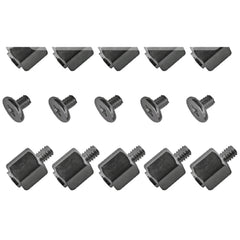
 M.2 Standoff + Screw Kit, 10 Sets (Black)View & buy →
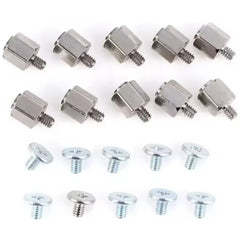
 M.2 Standoff + Screw Kit, 10 Sets (Silver/Black)View & buy →
 M.2 SSD Install Kit (M2 x 3mm + M2 x 4mm)View & buy →
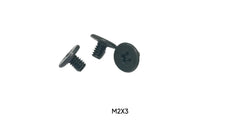
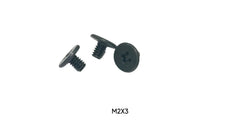
 M2 x 3mm NVMe / M.2 SSD Screws, 50-PackView & buy →
See all M.2 SSD screws & standoffs or use the Screw Size Finder.
Components Explained
M.2 Mounting Screw
Typically an M2 x 3mm screw with a low-profile head. This small screw secures the end of the SSD to the motherboard. Lost yours? Exact-fit replacements are in our M.2 SSD screws & standoffs collection.
Standoff (Spacer)
A small brass or nylon post that elevates the SSD to the correct height. Different M.2 lengths (2230, 2242, 2260, 2280) may require different standoff positions.
M.2 Form Factors
- 2230: 22mm wide, 30mm long (compact laptops, Steam Deck)
- 2242: 22mm wide, 42mm long (ultrabooks)
- 2260: 22mm wide, 60mm long (less common)
- 2280: 22mm wide, 80mm long (most common desktop/laptop size)
Installation Guide
Step 1: Locate the M.2 Slot
Identify your motherboard's M.2 slot. It will have multiple screw holes at different distances for various SSD lengths.
Step 2: Install the Standoff
Screw the standoff into the hole that matches your SSD length. Hand-tight is sufficient - don't over-torque.
Step 3: Insert the SSD
Align the SSD with the M.2 slot at a 30-degree angle, then gently press down until the connector is fully seated.
Step 4: Secure with Screw
Press the SSD down flat against the standoff and install the mounting screw. Tighten gently - the SSD should be secure but not bowed.
Common Installation Issues
Missing Hardware: The #1 problem. Many motherboards and laptops don't include M.2 screws, and they're easily lost.
Wrong Standoff Height: Using the incorrect standoff can bow the SSD, causing connection issues or damage.
Over-Tightening: M.2 SSDs are delicate. Excessive force can crack the PCB.
Stripped Threads: The tiny screw holes strip easily. Use a quality precision screwdriver.
Product Selection Tips
- Buy kits that include multiple standoff heights
- Nylon screws reduce the risk of shorts but may not be as durable
- Metal screws and standoffs are standard and work for most applications
- Keep extras - these screws are incredibly easy to lose
- Magnetic tip screwdrivers are essential for M.2 installation
Compatibility Information
Desktop Motherboards: Most modern boards have 1-3 M.2 slots with standardized mounting.
Laptops:
- Dell: XPS and Latitude models typically include mounting hardware
- HP: EliteBook and Spectre often require separate purchase
- Lenovo: ThinkPads usually include screws, consumer models may not
- ASUS: Gaming laptops include hardware, budget models often don't
- Acer: Rarely includes M.2 mounting screws
Gaming Consoles: PS5 M.2 expansion requires standard M2 screw and standoff.
Troubleshooting
SSD Not Detected: Ensure the SSD is fully seated in the connector before securing.
System Won't Boot: Verify the standoff height is correct and the SSD isn't bowed.
Thermal Issues: Some M.2 slots include thermal pads - don't over-tighten as this compresses the pad.
Get the Right M.2 Screw & Standoff
Whether your motherboard shipped without one or the screw vanished mid-upgrade, our M.2 SSD screws & standoffs collection has M2 x 3mm mounting screws and standoff kits that fit ASUS, MSI, Gigabyte, ASRock boards, laptops, and PS5 expansion slots. Not sure of the size? Our Screw Size Finder narrows it down in seconds. Orders over $10 ship free from South Carolina, USA.