Quick answer: Common Screw Sizes for PC Building
| Screw Type | Common Diameter / Thread |
|---|---|
| Standard Fan Screw | Self-Tapping |
| M3 Machine Screw | 3mm |
| M4 Machine Screw | 4mm |
| 6-32 Machine Screw | ~3.5mm |
| M2 & M2.5 Screws | 2mm & 2.5mm |
Getting the right case fan screws can be a surprisingly tricky part of a PC build. You have your new, high-performance fans ready to go, but the tiny screws that hold them in place can be confusing. Don't worry—you've come to the right place. The most common type of fan screw is the standard self-tapping screw, designed to cut its own threads into the fan's plastic frame. However, you'll also encounter machine screws, which are used for mounting fans to radiators or specific case brackets. Understanding the difference is key to a smooth and secure installation.
Shop the screws in this guide

More PC build screws: M.2 SSD screws and drive caddy screws.
What Are Case Fan Screws, Exactly?
At their core, case fan screws are simple fasteners designed for one job: securely mounting cooling fans to your computer's chassis. Their role is critical for maintaining optimal airflow, which keeps your expensive components cool and running efficiently. While they may seem like a minor detail, using the wrong type or size can lead to stripped fan housings, poor mounting, and increased vibration or noise.
Think of them as the unsung heroes of your PC's cooling system. They ensure your fans stay exactly where they need to be, directing air over your CPU, GPU, and other heat-generating parts. They generally fall into two distinct categories: self-tapping screws and machine screws.
The Two Main Types of Fan Screws
Navigating the world of PC hardware means knowing which screw to use and when. For fans, it almost always comes down to two options.
Standard Self-Tapping Fan Screws
This is the screw that most PC builders are familiar with. It has a coarse, sharp thread and a wider body. It’s called "self-tapping" because it is designed to tap, or cut, its own thread into the unthreaded plastic holes of a standard case fan.
- Best Use: Mounting a case fan directly onto the metal panel of a PC case.
- How it Works: You apply firm pressure while screwing it in, and the threads bite into the plastic, creating a snug and secure fit.
- Word of Caution: Be careful not to overtighten! It's easy to strip the plastic hole in the fan frame, which can make it difficult to get a secure fit later on.
Machine Screws for Fans
Machine screws look more like traditional screws, with a fine, uniform thread along the entire shaft. These screws are not designed to cut their own path; they require a pre-threaded hole to screw into. These are commonly used when mounting fans to a specific component that already has threaded holes.
Common use cases include:
- Mounting fans to an All-In-One (AIO) liquid cooler radiator.
- Attaching fans to hard drive cages or removable fan brackets.
- Securing fans to dust filters.
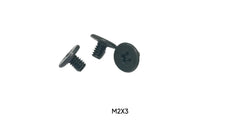
The world of machine screws is vast and precise. While radiators often use M3 or M4 screws, other electronics require even smaller, more specific fasteners. For example, securely mounting an M.2 SSD requires tiny M2 screws. This underscores the importance of matching the screw to its corresponding threaded hole.
A Closer Look at Fan Screw Sizes and Threading
While the self-tapping screw is a one-size-fits-most solution, machine screws demand precision. Using the wrong size won’t just fail to work—it could damage the threads on your expensive radiator or case bracket.
Common Screw Sizes for PC Building
Here’s a quick reference table for the most common screw types and their applications in a PC build.
| Screw Type | Common Diameter / Thread | Typical Use Case |
|---|---|---|
| Standard Fan Screw | Self-Tapping | Mounting fans directly to a case panel |
| M3 Machine Screw | 3mm | AIO Radiators, M.2 Drives, some brackets |
| M4 Machine Screw | 4mm | Larger AIO Radiators, VESA mounts |
| 6-32 Machine Screw | ~3.5mm | Hard Drives (3.5"), PSU mounting, expansion slots |
| M2 & M2.5 Screws | 2mm & 2.5mm | Laptops, some motherboards, and small devices like a Raspberry Pi 5 Case |
How to Install Case Fan Screws (Without Losing Your Mind)
Installing a fan should be a simple task, but a little technique goes a long way, especially with those tough self-tapping screws. Follow these steps for a frustration-free installation.
- Position Your Fan: Determine the direction of airflow (usually indicated by an arrow on the fan's housing) and place the fan in the desired location against the case panel.
- Align the Holes: Line up the four holes on the fan frame with the corresponding mounting holes on your case.
- Start by Hand: Take a self-tapping screw and start threading it by hand. You should feel it bite into the plastic. Giving it a couple of turns by hand ensures it goes in straight.
- Use Your Screwdriver: With the screw started, use a Phillips head screwdriver to slowly drive it in. You’ll need to apply firm, consistent pressure. Do not use a power drill unless you have a torque-limiting driver and are very careful.
- Tighten in a Cross-Pattern: Screw in all four screws partially, then tighten them in an X-pattern (top-left, bottom-right, top-right, bottom-left). This ensures even pressure across the fan frame and prevents warping.
- Don't Overtighten: Tighten until the screw is snug. If you keep cranking on it, you will strip the plastic hole. The fan should be firm against the case with no wobble.
Common Problems and How to Solve Them
Even with the best technique, you can run into issues. Here are a few common problems and their solutions.
Problem: The Screw Hole in the Fan is Stripped!
Solution: This happens when a self-tapping screw is overtightened. The easiest fix is to simply use the other set of holes on the fan (for push vs. pull configuration). If that's not an option, you can try a slightly wider screw or use a nut and bolt to secure it.
Problem: The Screw Just Won't Thread In.
Solution: First, double-check you're using the right screw type. If you're trying to force a machine screw into an unthreaded fan hole, it won't work. If you're using a self-tapping screw, make sure you are pushing straight and with enough force for the threads to bite. Sometimes the holes in the case and fan aren't perfectly aligned, so a little wiggling can help.
Problem: I Lost My Screws!
Solution: This is the most common issue of all. Screws get dropped, roll under furniture, or are simply not included with a second-hand fan. This is where a reliable parts supplier comes in handy and leads us to our next point.
Where to Find the Right Case Fan Screws
While most new fans and cases come with a set of standard case fan screws, they are incredibly easy to lose. When you need replacements or are working on a custom project requiring specific fasteners, you need a place that stocks them. At Tech Spare Warehouse, we specialize in the small, essential components that bring a build together.
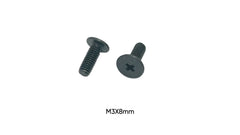
Whether you need standard fan screws or specialized machine screws for other parts of your build, having a good supplier is key. For radiators and fan brackets, we stock an M3 x 8mm Phillips flat head screw for PC case fan and radiator installs, sold individually.
Conclusion: The Right Screws for a Cool, Quiet PC
Mastering the small but mighty case fan screws is a rite of passage for any PC builder. Knowing the difference between a self-tapping screw for your case and an M4 machine screw for your radiator will save you time, prevent damage, and result in a cleaner, quieter build. While most fans come with the hardware you need, losing them is almost a guarantee. When that happens, don't let it derail your project. For all the tiny, essential, and easy-to-lose parts for your next build, be sure to check out the extensive inventory at Tech Spare Warehouse.
Frequently Asked Questions
What size are most case fan screws?
The most common type is a "self-tapping" screw, which doesn't have a standard machine screw size like M3 or M4. It's designed to be slightly larger than the fan's mounting hole to cut its own threads. For machine screws used on radiators, M3 and M4 are the most common sizes.
Can I use any screw for my case fan?
No. If mounting directly to the case, you should use a standard self-tapping fan screw. If mounting to a radiator or bracket with threaded holes, you must use a machine screw of the correct size (e.g., M3, M4) to avoid damaging the threads.
How many screws do I need per fan?
You should use four screws per fan to ensure it is mounted securely. This prevents rattling and ensures the fan frame doesn't warp, which could cause the blades to hit the housing.
What's the difference between case fan screws and radiator screws?
Standard case fan screws are self-tapping and thread into the fan's plastic frame. Radiator screws are typically long machine screws (like M3 or M4) that pass through the fan's hole and thread into the metal radiator body.
Do case fans come with screws?
Yes, virtually all new retail case fans include a set of four self-tapping screws. If you are buying a used fan or have lost the originals, you will need to source replacements.
Are all PC case screws the same?
Absolutely not. A typical PC build uses many different screws, including motherboard standoffs, 6-32 screws for PSUs and hard drives, and M3 screws for M.2 SSDs, in addition to fan screws. Keeping them organized is essential.
Where can I buy replacement case fan screws?
You can find replacement case fan screws at specialized electronics and PC hardware stores. Online retailers like Tech Spare Warehouse offer a wide variety of specific screws for fans, radiators, and other PC components.