Quick answer: HDD Caddy vs. External Enclosure: What's the Difference?
| Feature | HDD Caddy |
|---|---|
| Use Case | Adding a permanent, second internal drive. |
| Portability | Installed inside the laptop; not portable on its own. |
| Connection | Internal SATA (usually faster and more stable). |
| Power | Powered by the laptop's internal power supply. |
An HDD caddy, or hard drive caddy, is a specially designed frame that allows you to add a second hard drive (HDD) or solid-state drive (SSD) into the bay where your laptop's optical (CD/DVD) drive usually sits. It's one of the most cost-effective and powerful upgrades you can make, instantly boosting your machine's storage capacity or overall speed. If your laptop feels slow or you're constantly running out of space, using an HDD caddy to install an extra drive is the perfect solution.
What is an HDD Caddy, Really?
Think of it as an adapter. Laptops have a standardized slot for an optical drive, which connects to the motherboard via a SATA interface. As physical media like CDs and DVDs have become less common, this slot is often left unused. An HDD caddy cleverly repurposes this space. It has the same external shape and connection as an optical drive, but inside, it contains a space and a SATA connector for a 2.5-inch laptop-sized HDD or SSD.
This means you can take the largely obsolete DVD drive out and slide in a caddy containing a brand new, high-capacity drive. Your laptop's BIOS will recognize it as a second storage device, giving you a massive upgrade without needing to replace your primary drive.
Why You Need an HDD Caddy: The Core Benefits
You might be wondering if this upgrade is right for you. If you're facing storage woes or performance issues, the answer is a resounding yes. The benefits are significant:
- Massive Storage Expansion: The most obvious benefit is more space. Add a 1TB or 2TB hard drive to your laptop and never worry about running out of room for your files, games, and media again.
- Blazing-Fast Speed Boost: The most popular use for an HDD caddy is to create a dual-drive setup. Move your operating system (like Windows or macOS) to a new, fast SSD in the main drive bay. Then, put your old, larger HDD into the caddy for mass storage. This gives you the incredible speed of an SSD and the high capacity of an HDD.
- Cost-Effective Upgrade: Compared to buying a new laptop, an HDD caddy and a new drive are an incredibly affordable way to extend the life and improve the performance of your current machine.
- Recycle Old Hardware: It allows you to reuse the hard drive you replaced when you upgraded to an SSD. Nothing goes to waste!
Types of HDD Caddies: Getting the Right Fit
Not all caddies are created equal. Choosing the correct one is crucial for a successful installation. The main differences come down to size and compatibility.
Size Matters: 9.5mm vs. 12.7mm
The most important factor is the thickness of your laptop's optical drive bay. There are two standard sizes:
- 12.7mm: Found in older and thicker standard-sized laptops.
- 9.5mm: Known as a "slim" drive, found in most modern and ultra-thin laptops.
Before you buy, you must measure the height of your optical drive. The easiest way is to remove it and measure it with a ruler. Buying the wrong size will mean the caddy either won't fit or will be loose and unstable.
Universal vs. Model-Specific Brackets
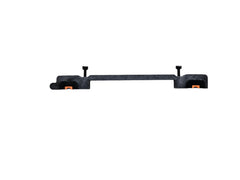
Most HDD caddies are "universal," designed to fit a wide range of laptops from brands like Dell, HP, Lenovo, and Acer. However, some laptops, particularly Apple MacBooks, require specific mounting hardware. For example, upgrading an older MacBook requires a dedicated HDD Hard Drive Bracket for a MacBook Pro to ensure the drive is held securely in place.
HDD Caddy vs. External Enclosure: What's the Difference?
People often confuse an internal HDD caddy with an external USB enclosure. While both let you use an extra drive, their purpose is very different. An HDD caddy is for an internal installation, while an enclosure is for creating an external USB drive.
| Feature | HDD Caddy | External Enclosure |
|---|---|---|
| Use Case | Adding a permanent, second internal drive. | Creating a portable USB drive for backups or file transfers. |
| Portability | Installed inside the laptop; not portable on its own. | Highly portable; can be connected to any computer via USB. |
| Connection | Internal SATA (usually faster and more stable). | External USB (speed limited by USB version). |
| Power | Powered by the laptop's internal power supply. | Powered by the USB port (for 2.5") or an external AC adapter (for 3.5"). |
How to Install an HDD Caddy: A Step-by-Step Guide
Ready to perform the upgrade? The process is surprisingly straightforward. Here’s a general guide that applies to most laptops:
- Gather Your Tools: You'll typically need a small Phillips head screwdriver and potentially a plastic pry tool to gently remove bezels or covers.
- Power Down & Remove Battery: Completely shut down your laptop, unplug it from the charger, and if possible, remove the battery for safety.
- Remove the Optical Drive: Usually, a single screw on the bottom of the laptop holds the optical drive in place. Unscrew it, and the drive should slide right out.
- Prepare the HDD Caddy: You'll need to transfer the small mounting bracket from your old optical drive to the new caddy. You'll also want to gently pry off the plastic faceplate (bezel) from your optical drive and snap it onto the caddy so it matches your laptop's exterior.
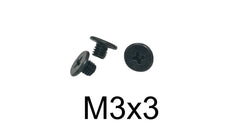
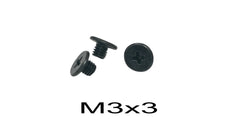
- Mount Your Drive in the Caddy: Place your 2.5-inch HDD or SSD into the caddy and slide it into the SATA connector. Secure it using the included screws. It's easy to lose these tiny fasteners, so having a set of replacement M3 x 3mm Laptop HDD Caddy Screws on hand is always a good idea.
- Insert the Caddy: Slide the assembled caddy into the now-empty optical drive bay until it clicks into place. Secure it using the same screw you removed in step 3.
- Boot Up and Initialize: Power on your laptop. If you installed a new, unformatted drive, you'll need to go into Disk Management (on Windows) or Disk Utility (on macOS) to format and partition the new drive before it becomes visible in your file explorer.
Essential HDD Caddy Screws and Parts
One of the most common frustrations during a DIY upgrade is losing a tiny, essential screw. At Tech Spare Warehouse, we know that having the right parts is critical for a smooth installation. If you've misplaced a screw or are preparing for a new project, we have the exact replacement parts you need.
- Standard Caddy Screws: For most installations securing a 2.5" drive into a caddy, these M3×3mm HDD Caddy Screws are the industry standard and a must-have for your toolkit.
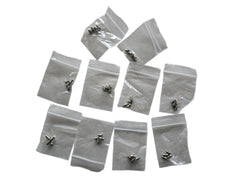
- MacBook Pro Screw Sets: Working on a Mac? You'll need specific Torx screws. This complete pack of Hard Drive Screws for Apple MacBook Pro has everything you need for a successful installation.
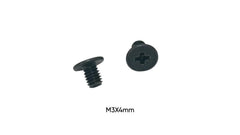
- Bracket Mounting Screws: Sometimes the screws for the caddy bracket itself are a bit longer. A pack of M3 x 4mm Phillips Flat Head Screws is perfect for securing caddy mounting brackets.
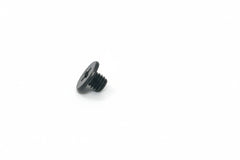
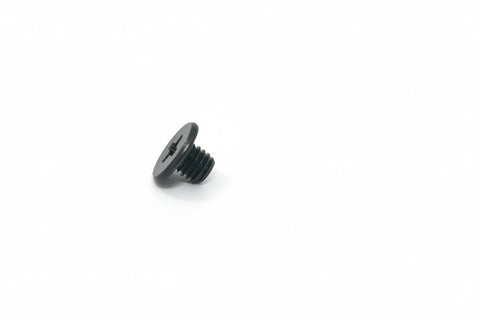
- Single Replacements: Lost just one screw? It happens! We even offer a single replacement M3 x 3mm screw to save your project without forcing you to buy a whole pack.
Conclusion: A Worthy Upgrade for Any Laptop
An HDD caddy is a fantastic tool for breathing new life into an aging laptop. It offers a simple, affordable, and effective way to overcome the limitations of a single-drive system. Whether you need more storage, want the speed of an SSD, or both, this simple component is the key to unlocking your laptop's hidden potential. Don't let a full drive slow you down; the perfect upgrade is just a caddy away.
Ready to find the right parts for your laptop upgrade? Explore our full range of storage solutions, caddies, and replacement screws at Tech Spare Warehouse today!
Need the screws that hold the drive in the caddy? See hard drive screw size: 2.5" and 3.5" HDD and SSD screws.
Frequently Asked Questions
What is the point of an HDD caddy?
The main point of an HDD caddy is to allow you to add a second internal hard drive (HDD) or solid-state drive (SSD) to your laptop by replacing the often unused optical (CD/DVD) drive. This allows for increased storage capacity or improved performance via a dual-drive setup.
Does an HDD caddy affect performance?
The caddy itself does not affect performance, as it is just a physical adapter. The performance is determined by the drive you install in it and the speed of the SATA port it connects to. In most laptops, the optical bay SATA port is just as fast as the primary drive bay.
Can I put an SSD in an HDD caddy?
Absolutely! Putting an SSD in an HDD caddy is a very common and highly recommended upgrade. For best results, many users install the SSD as their primary boot drive and move the original, larger HDD to the caddy for storage.
How do I know which size caddy to buy?
You need to measure the height (thickness) of the optical drive you are replacing. Eject the drive tray, power down the laptop, remove the drive completely, and measure it. It will be either 9.5mm (slim) or 12.7mm (standard). You must buy a caddy of the same height.
Will adding a second drive drain my laptop battery faster?
Yes, any additional component will consume some power. A traditional spinning HDD will consume more power than an SSD. However, the impact on overall battery life is usually minimal and a worthwhile trade-off for the extra storage and speed.
Can I boot from the drive in the HDD caddy?
Yes, most modern laptops allow you to select the boot device in the BIOS/UEFI settings. You can install an operating system on the drive in the caddy and boot from it if you choose.
Do all laptops support an HDD caddy?
Most laptops with a removable, standard-sized SATA optical (CD/DVD) drive support an HDD caddy. However, ultra-thin laptops (like modern MacBooks or Ultrabooks) that do not have an optical drive cannot use one. Always check for a removable optical drive first.